Introduction
The SCDTP SharePoint and Teams are hosted by the University of Southampton. If you are registered at another SCDTP partner university, such as the University of Brighton, University of Chichester, University of Portsmouth, or another institution outside the University of Southampton, you may need to accept an email invitation before you can access the SCDTP SharePoint or Teams.
This is because your usual Microsoft 365 account is linked to your own university environment. To access SCDTP SharePoint, you may need to switch from your university’s Microsoft environment to the University of Southampton/SCDTP environment.
Please use the same email address that you used to register with the SCDTP. This is the email address that the SharePoint invitation was sent to.
Before you begin
Please make sure that:
- You have received an email invitation from SCDTP or the University of Southampton.
- You are using the same email address that the invitation was sent to.
- You are able to access your university email inbox.
- You are using a web browser such as Microsoft Edge, Google Chrome, or Safari.
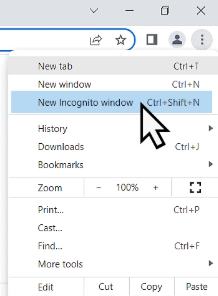
If you are already signed in to another Microsoft account, you may find it easier to open the link in a private or incognito browser window.
Step 1: Open the SharePoint invitation email
Go to your university email inbox and look for the email invitation from SCDTP or the University of Southampton.
The email may say that you have been invited to access a SharePoint site, folder, document, or shared resource.
Click the link or button in the email invitation. This may say something like:
Open
Open in SharePoint
Go to site
View folder
Accept invitation
Step 2: Sign in using the invited email address
When the Microsoft sign-in page opens, enter the same email address that received the invitation.
This should be the email address you used to register with the SCDTP.
For example:
Do not use a different personal email address or another university email address, as the invitation is linked to the email address that received it. It is best to use the primary email (not alternate) and the one mainly used in our SCDTP students records.
Step 3: Complete your university sign-in
You may be redirected to your own university’s sign-in page.
Enter your usual university password and complete any security checks, such as multi-factor authentication, if required by your university.
This step confirms your identity using your home university account.
Step 4: Accept the invitation
After signing in, you may see a Microsoft screen asking you to accept the invitation or permissions to access the University of Southampton/SCDTP environment.
Click Accept or Continue.
This allows your account to be recognised as a guest user in the SCDTP SharePoint environment.
Step 5: Open the SCDTP SharePoint site
Once the invitation has been accepted, the SCDTP SharePoint site, folder, or document should open automatically.
You should now be able to view the content that has been shared with you.
Step 6: Check that you are in the correct organisation
If you are still seeing your own university environment, or if the SCDTP SharePoint does not open correctly, check which Microsoft organisation you are currently using.
In the top-right corner of the Microsoft page, click your profile picture or initials.
Look for an option to switch organisation or switch account.
Select the University of Southampton or SCDTP organisation if it appears.
Step 7: Switch from your university environment to the SCDTP environment
If you see more than one organisation listed, choose the University of Southampton or SCDTP option.
This changes your Microsoft environment from your own university to the environment where the SCDTP SharePoint is hosted.
After switching, try opening the SharePoint link again.
Step 8: Try the link again
Return to the original invitation email and click the SharePoint link again.
You should now be taken into the SCDTP SharePoint site, folder, or document.
If the page asks you to sign in again, use the same invited email address.
If you see an error message
You may see a message such as:
You need permission to access this site
Access denied
This link only works for people who have been invited
Your account is not recognised
Something went wrong
If this happens, please check the following:
- You are using the same email address that received the invitation.
- You have accepted the invitation email.
- You are not signed in with a different Microsoft account.
- You have tried opening the link in a private or incognito browser window.
- You have switched to the University of Southampton/SCDTP organisation if this option is available.
If you are still unable to access the SharePoint
Please contact the SCDTP team and include the following information:
- Your full name.
- Your university.
- The email address you are using to sign in.
- A screenshot of the error message.
- The link or name of the SharePoint page, folder, or document you are trying to access.
Please do not send your password or any security codes.
You can contact us at: scdtp@soton.ac.uk
Quick checklist
Before contacting SCDTP, please check:
- I am using the same email address that received the invitation.
- I have opened the invitation email and clicked the access link.
- I have signed in using my university account.
- I have accepted the Microsoft invitation.
- I have checked whether I need to switch organisation.
- I have tried using a private or incognito browser window.
- I have taken a screenshot of any error message.
Summary
Students from universities outside the University of Southampton may need to accept an invitation and switch Microsoft organisation before accessing the SCDTP SharePoint.
Always use the same email address that was used for your SCDTP registration and the same email address that received the SharePoint invitation.